
Tips for running local AI models on a laptop
Local AI is useful. So are long video exports, rendering and other jobs that let a laptop get on with several hours of serious work.
None of that is automatically bad for a laptop. It is simply a different workload from browsing, email or documents.
These tips apply whether the laptop came from GreenGreenStore or somewhere else. We are not trying to steer you towards a particular machine. Every model has its own vent layout, power settings and limits, so think of this as a practical starting point rather than a complete setup guide.
First, check what is actually running on the laptop
| Workload | What normally happens | Likely laptop load |
|---|---|---|
| Browser AI chat | The main model usually runs in the provider's data centre | Usually closer to a busy browser session |
| Agentic coding | The model may be remote, while builds, tests, indexing and local tools run on the laptop | It depends on what the agent is doing |
| Local AI inference | The model runs on your CPU, GPU and memory | Often a sustained local load |
| Video export or rendering | The laptop encodes, renders and writes the output locally | Often a sustained CPU, GPU and SSD load |
Eight hours of mixed office work is not the same as eight hours of sustained local inference or rendering. The point is not the clock alone. It is how hard the CPU, GPU, memory, cooling system and storage remain busy during that time.

1. Keep the lid open
This is the first thing to change for a long run.
It is easy to connect an external monitor, close the laptop and put it into a vertical stand. Some laptops officially support closed-lid use, but an open lid is the more cautious setup when the CPU and GPU may stay busy for hours.
Do not run a sustained workload with the laptop shut inside a closed stand. Never put a running laptop in a drawer, cabinet, bag, sleeve or tight desk compartment.
A closed lid is not automatically a fire risk. The concern is sustained heat combined with restricted airflow, a damaged battery, the wrong charger or another fault.
2. Give it cooler air where practical
You do not need to air-condition the whole building.
A laptop simply has less work to do when the air entering its vents is cooler. If one room is noticeably cooler, use that room for a long export or overnight inference job.
- Keep the laptop away from:
- Direct sunlight
- Radiators and heaters
- Hot windowsills
- Warm air exhausted by another computer
- Tight corners where hot air collects
3. Keep every vent clear
Use a hard, flat surface. Do not run a sustained job on a bed, sofa, carpet or blanket.
Raise the system where the main air intakes are located. A stand can help by creating more space beneath the laptop.
An active cooling pad can help too, but only if its fans roughly line up with the laptop's intake area. A pad that blocks an intake or blows against an exhaust can make temperatures worse.
Check the underside and rear of the laptop before choosing a stand. Leave space around the side and rear exhausts.
4. Fit the job to the laptop you have
With an existing laptop, work within the CPU, GPU and memory already available. Some laptops have weaker hardware that can’t handle more demanding workloads.
For local AI, the practical options are:
- Use a smaller or more heavily quantised model
- Reduce the context length
- Run fewer sessions or agents at once
- Close browsers, virtual machines and other heavy applications
For video editing or rendering:
- Use proxies or optimised media where suitable
- Reduce unnecessary background applications
- Avoid exporting several jobs at once
- Use a sensible preview or render cache
- Check whether the editor supports a less demanding export workflow
If the workload exceeds the system’s total RAM, this can take up space on the internal SSD/HDD and cause significant slowdown.
When selecting a laptop, check memory at the start. VRAM on most laptop graphics cards cannot be upgraded. Unified memory on Apple Silicon is fixed at purchase. System RAM may also be soldered on some models.
This guide is not a buying recommendation. It is simply worth knowing which limits can and cannot be changed later.
5. Reduce power settings
Maximum performance mode is not always worth it for a job that will run for several hours.
Start with Balanced or the manufacturer's normal performance profile. If the laptop remains very hot or repeatedly throttles, use a supported CPU or GPU power limit.
Disabling CPU Turbo Boost can reduce heat on some laptops, although it also reduces performance. Similarly, underclocking can reduce power and heat usage at the cost of further reducing performance.
Avoid random voltage changes in the laptop’s BIOS settings without proper testing. More specific configuration will depend on the exact laptop and software, which is beyond this general guide.
6. Use the monitoring tools before there is a problem
Open the tools before the first long session. Check them after 10 minutes and again later in the run. Do not make the first test an unattended overnight job.
| Tool | What it is useful for |
|---|---|
| Windows Task Manager | CPU, memory, disk and GPU use, plus the process causing it |
| macOS Activity Monitor | CPU, memory, energy and disk activity |
| HWiNFO/HWMonitor on Windows | Temperatures, fan speeds and thermal throttling |
| nvidia-smi | NVIDIA GPU memory, temperature, power and utilisation |
| Windows Reliability Monitor | Driver crashes, black screens, restarts and application failures |
| Manufacturer utility | Power mode, fan profile and battery charge limit |
In HWiNFO, use Sensors-only mode and check the maximum readings after the run. In Task Manager or Activity Monitor, look for unexpected processes rather than assuming the main application is responsible for everything.
There is no single temperature number that suits every laptop. Look for repeated throttling, sudden shutdowns, falling performance, the battery draining while plugged in, or behaviour that is clearly worse than before.
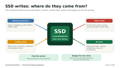
7. Treat SSD writes as part of the ownership cost
Local inference is not automatically heavy on SSD writes. Once a model is loaded, much of the work is reading data and calculating in memory.
Video editing and agentic coding can be much more write-heavy than people expect.
Common sources include:
- Model downloads and updates
- Swap or pagefile activity when memory is tight
- Logs, prompt caches and local databases
- Repository indexing and file watching
- Builds, tests, worktrees, containers and package caches
- Video proxies, preview files and render cache
- Export scratch data
- Embeddings, fine-tuning data and checkpoints
Open CrystalDiskInfo and note the exact SSD model, Total Host Writes, temperature and reported health. Check it again after a normal day or week of use. Compare the cumulative writes with the TBW rating for that exact drive.
If the write count rises quickly while the laptop should be idle, use Resource Monitor or Process Monitor to find the process responsible.
For regular local inference, heavy coding or long-form video work, include a possible SSD replacement in the total cost of ownership. A replaceable M.2 SSD is easier and cheaper to plan around than soldered storage.
Budget for:
- The replacement drive
- Cloning or reinstalling the operating system
- Restoring applications and data
- A little downtime
This does not mean the SSD will fail quickly. It means storage is a wear item, and a write-heavy workflow can make replacement a normal ownership cost rather than a surprise.
Where the software supports it, a separate replaceable SSD can be useful for video cache, scratch data or other disposable working files. Check the application's guidance first, and do not treat a scratch drive as a backup.
8. Use the right charger and protect the battery
Use the original charger or a good quality replacement with the correct wattage.
An underpowered USB-C charger or dock can leave the battery slowly discharging while the laptop appears to be plugged in. That adds battery cycles and may reduce performance.
If the laptop spends most of its time on mains power, enable the manufacturer's battery conservation or charge-limit setting where available.
Check the plug, cable and charger occasionally. Stop using them if there is damage, scorching, crackling, an unusual smell or excessive heat.
9. Back up the work and take warning signs seriously
Model files and applications can often be downloaded again. Your projects, code, timelines, prompts, local databases, fine-tuned adapters and source files may not be replaceable.
Use a service like Git for code, but keep more than one backup. For video work, make sure the project file and original footage are not stored only on the laptop's internal SSD.
A repeated black screen under load is not immediate proof that the GPU is failing. It could be a driver reset, heat, power delivery, memory pressure or an unstable setting. It is still a reason to stop repeating the same workload until the cause is understood.
Stop and investigate if you see:
- Repeated shutdowns or restarts
- New graphical corruption
- A fan that grinds, stops or changes sound
- A case, keyboard or display bezel beginning to distort
- Battery swelling
- A burning or chemical smell
- Hissing, crackling or smoke
10. Planning to run the workload 24/7?
Use a desktop workstation or properly cooled server where practical.
It will normally be easier to cool, easier to service and easier to fit with replaceable storage. It also avoids keeping a laptop battery warm beside a continuous compute workload.
A practical setup is to run the model, render queue or other long job on the desktop and access it remotely from the laptop. You keep the portability without making the laptop do the 24-hour work.
A laptop can still be a good fit for occasional, portable or shorter local runs. The point is to match the machine to the duty cycle.
Bottom line
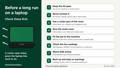
Keep the lid open. Never run the laptop in a drawer, cabinet or closed stand. Give the vents cooler air where practical. Use a job that fits the machine. Watch temperatures and SSD writes. Back up the work.
That is a sensible starting point.
Sources and further reading
- OpenAI: ChatGPT data residency and inference residency
- OpenAI: Codex cloud environments
- OpenAI: Codex CLI
- Anthropic: Claude Code overview
- Cursor: Cloud Agents
- xAI: Grok Build
- NVIDIA: GPU memory essentials for AI
- Dell: laptop ventilation and overheating guidance
- Apple: acceptable operating temperatures and ventilation
- Apple: closed-lid external display use
- Electrical Safety First: laptop safety
- Intel: Turbo Boost
- AMD: Precision Boost 2
- CrystalDiskInfo official download
- Kingston: understanding SSD TBW and DWPD
- Microsoft: caring for batteries in Windows devices
- NCSC: backing up your data
Information and responsibility: This article is general information only. It is not model-specific safety advice, a diagnosis, a warranty or an assurance that a workload is suitable for your laptop. GreenGreenStore cannot monitor your setup. Follow the manufacturer's instructions for the exact device. You are responsible for the device, charger, surroundings, operation, monitoring, maintenance, backups and any decision to run the workload.
Did you know we sell refurbished tech? We sell mostly refurbished laptops from all the major brands, Lenovo laptops, Dell laptops & HP laptops just to name a few. We are looking to increase the range of products that we offer in the future to include things like refurbished phones. We pride ourselves on the quality of the service we provide and the products we sell. For more information go to about us or check out our current stock.